
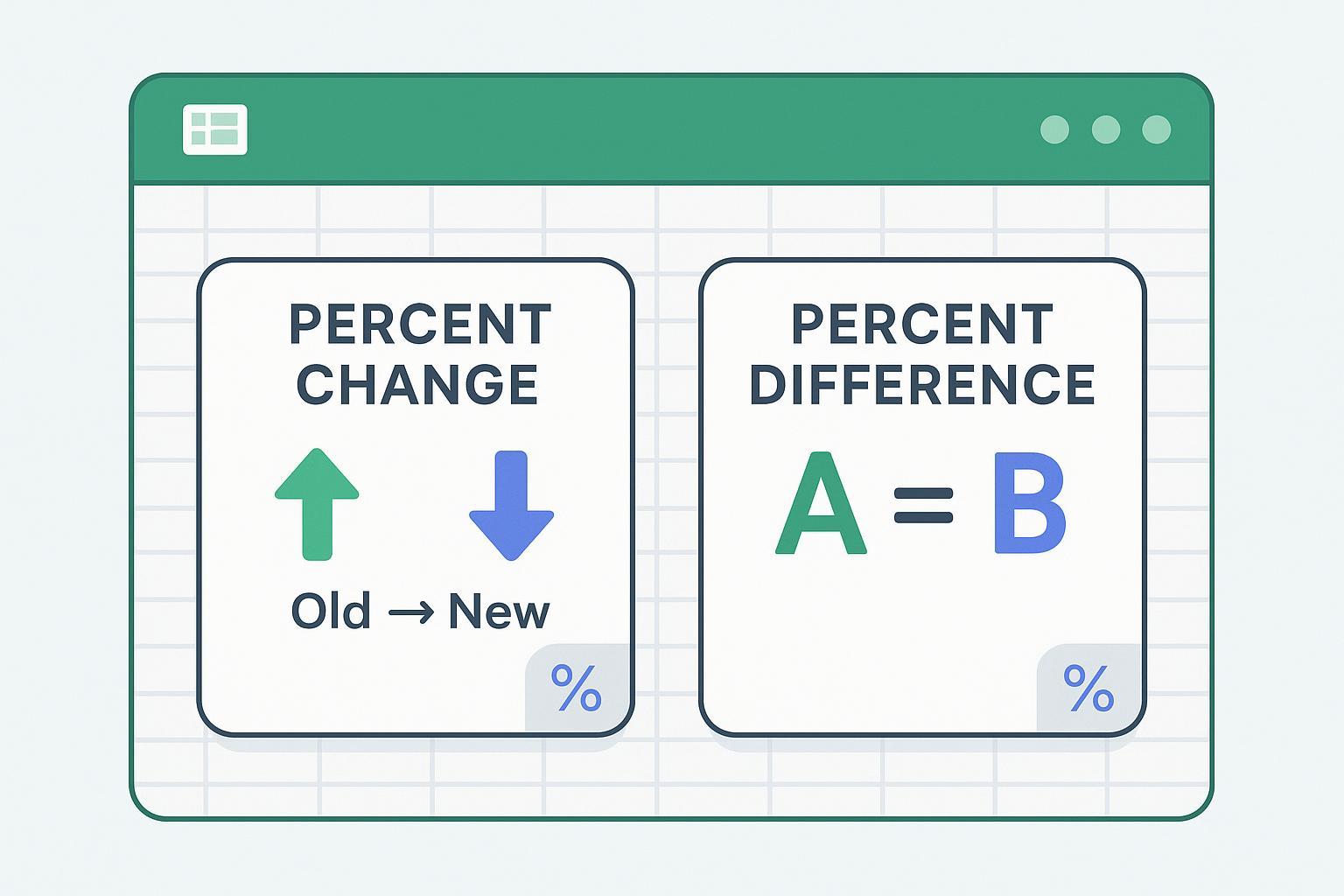

Choosing between percent change and percent difference looks trivial—until a weekly KPI deck turns into a debate about baselines, signs, and “why 50% up then 50% down isn’t zero.” This guide gives you a practical, Excel‑ready way to decide, implement, and communicate the right metric for your report.
Key takeaways
Use percent change for time‑ordered or baseline comparisons (Old→New). Use percent difference for two independent values (A vs B) when no side is the “before.”
The denominator is the giveaway: percent change divides by Old; percent difference divides by the average of A and B (symmetric, order‑invariant).
In Excel, percent change is easy in PivotTables via Show Values As → % Difference From. Symmetric percent difference isn’t listed as a native Pivot option; use cell formulas or calculated fields.
Guard against divide‑by‑zero and near‑zero baselines with IF/IFERROR patterns. Label the method in your report so stakeholders interpret it correctly.
TL;DR — When to use which (with one‑line formulas)
Percent change (asymmetric; baseline known): (New − Old) ÷ Old → Excel: =(C2−B2)/B2. See Microsoft’s guidance in Calculate percentages for details on patterns and formatting as Percentage: Excel’s percentage calculation guide.
Percent difference (symmetric; no before/after): |A − B| ÷ AVERAGE(A, B) → Excel: =ABS(A2−B2)/AVERAGE(A2,B2). The symmetry (order doesn’t matter) is emphasized in academic lab primers such as the College of San Mateo physics intro: Percent difference with average denominator.
Percent change vs percent difference in Excel — side‑by‑side
Below is a compact table to compare definitions, formulas, use cases, and implementation notes.
Dimension | Percent Change | Percent Difference |
|---|---|---|
Definition | Relative change from a baseline (Old→New). | Symmetric comparison of two peers using the average denominator. |
Directionality | Asymmetric: swapping Old/New flips sign and value. | Symmetric: swapping A/B yields the same value (typically positive). |
Denominator | Old (baseline). | AVERAGE(A, B). |
Best for | Time series (YoY/MoM), actual vs budget/plan. | A/B tests, vendor price comparisons, measurement agreement. |
Excel cell formula | =(New−Old)/Old | =ABS(A−B)/AVERAGE(A,B) |
Pivot support | Native Show Values As → % Difference From (choose Base field/item). | Not listed as a native symmetric option; use formulas or calculated fields. |
Edge cases | Undefined if Old=0; guard with IF/IFERROR. | Undefined if AVERAGE(A,B)=0; guard with IF. |
Communication | Label baseline and sign conventions. | Label as “percent difference (symmetric).” |
Automation | Easy in PivotTables; straightforward in DAX. | Manual/calc‑field approach; more setup for dashboards. |
Auditability | Traceable to baseline series; comment baseline choice. | Traceable pairwise; document symmetric method and guards. |
Note on Excel versions: This guide applies broadly to Excel 2016 through Microsoft 365 on Windows/Mac/Web. Feature availability and UI labels can evolve.
Scenario picks: best metric for common business questions
Time‑series growth/decline (YoY/MoM) — Pick percent change. It communicates movement relative to the previous period cleanly and supports positive/negative trends.
Actual vs budget (variance to plan) — Pick percent change with Budget as Old. Stakeholders expect variance relative to the plan baseline.
A/B tests and conversion lift (treatment vs control) — Pick percent difference. There’s no inherent “before,” and symmetry avoids base bias.
Vendor price comparison — Pick percent difference. Comparing Peer A to Peer B should not depend on order.
Research/measurement agreement — Pick percent difference. Symmetry reflects equal standing of measurements.
Baseline near zero — Avoid pure percentages. Show absolute deltas and explain limitations; percentages can explode or be undefined here.
Copy‑paste Excel formulas (guarded) and formatting tips
Percent change (asymmetric)
Basic: =(C2−B2)/B2
Guarded: =IF(B2=0,"N/A",(C2−B2)/B2) or =IFERROR((C2−B2)/B2,"")
After entering the formula, apply Percentage formatting. Microsoft documents both the calculation pattern and how to format numbers as percentages in Excel: Excel percentage formatting and patterns.
Percent difference (symmetric)
Basic: =ABS(A2−B2)/AVERAGE(A2,B2)
Guarded: =IF(AVERAGE(A2,B2)=0,"N/A",ABS(A2−B2)/AVERAGE(A2,B2))
Keep labels clear: “Percent difference (symmetric; average denominator).”
Error handling patterns
Use IF/IFERROR to avoid #DIV/0! and blank out or label N/A where appropriate. Microsoft’s IFERROR function is described here: IFERROR function reference.
Edge cases and mistakes to avoid
Zero or near‑zero denominators
Percent change is undefined when Old=0. Use guards and present absolute change alongside any percentage.
Percent difference is undefined when AVERAGE(A,B)=0 (e.g., A=5 and B=−5). Return N/A and add context.
Negative values
Percent change will carry a sign that reflects direction (increase/decrease). That’s expected and useful for trends.
Percent difference, by design with ABS(), is order‑invariant and typically positive; that’s helpful for peer comparisons but can mask direction. Pair it with absolute deltas when direction matters.
Communication clarity
Name the method in a footnote: “Percent change = (New−Old)/Old” or “Percent difference (symmetric) = |A−B|/AVERAGE(A,B).”
Include guard rules in comments (e.g., “IFERROR to avoid #DIV/0!”) so others can audit your sheet.
PivotTables and Power Pivot: fast implementation and caveats
Percent change via PivotTable
Steps: Right‑click the Value field → Value Field Settings → Show Values As → % Difference From → pick the Base field (e.g., Date) and Base item (e.g., Previous). Then format as Percentage. Microsoft details these options under Show Values As: PivotTable “Show Values As” options, including % Difference From.
Platform note: On Mac, some options appear under More Options; Excel for the web may differ vs desktop.
Symmetric percent difference in PivotTables
Not listed among native Show Values As options. Implement with a calculated field/measure or compute in worksheet cells.
Power Pivot / DAX pattern for percent change
Use DIVIDE for safe division and then subtract 1 if you’re forming ratios, or compute (New−Old)/Old directly with DIVIDE in the denominator. Reference: DIVIDE function in DAX.
Also consider (workflow help beyond Excel)
If your team often debates which metric to use or spends time wiring formulas, a lightweight data agent like hiData can help people choose and apply the correct method consistently, auto‑build percent‑change visuals, and flag risky near‑zero baselines. Keep your Excel processes, but let a helper standardize the setup—especially for non‑analyst users.
FAQs
When should I use percent change vs percent difference in Excel?
Use percent change for time‑ordered/baseline comparisons: =(New−Old)/Old. Use percent difference for two independent values: =ABS(A−B)/AVERAGE(A,B). Cite your method in the report to avoid confusion. See Microsoft’s general percentage guidance and academic notes on symmetric percent difference in the sources above.
How do I calculate percent difference in Excel with zero or negative numbers?
Use =IF(AVERAGE(A2,B2)=0,"N/A",ABS(A2−B2)/AVERAGE(A2,B2)). Negative inputs are fine; when the average is zero, return N/A and explain the limitation.
Which metric is symmetric and why?
Percent difference is symmetric because it divides |A−B| by the average(A,B), so swapping A and B yields the same result. This symmetry is standard in lab/engineering contexts.
How do I show percent change in a PivotTable?
Value Field Settings → Show Values As → % Difference From → set Base field/item → OK; then format as Percentage. Microsoft documents these steps on the Pivot “Show Values As” help page referenced above.
What formula handles divide‑by‑zero in percentage calculations?
Wrap formulas with IF or IFERROR, for example: =IF(B2=0,"N/A",(C2−B2)/B2) or =IFERROR((C2−B2)/B2,""). Microsoft explains IFERROR usage in its function reference.
Quick decision check (mental flow)
Is there a clear baseline or time order? If yes, use percent change. If no, go to next.
Are you comparing two peers of equal standing? If yes, use percent difference.
Is the baseline zero or very small? Avoid percentages alone; show absolute change and a note.
By choosing the method that matches your scenario—and by guarding edge cases—you’ll report cleaner, more trustworthy percentages. That’s how you keep debates short and insights crisp while covering the core question of percent change vs percent difference in Excel across your dashboards and decks.